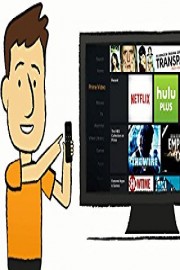
Watch Help Videos for Amazon Fire TV Stick
- TV-NR
- 2015
- 1 Season
Help Videos for Amazon Fire TV Stick is a series of instructional videos directed towards Amazon Fire TV Stick users. Produced by Amazon Customer Service, the show aims to provide easy-to-understand solutions to common issues encountered by users of one of the world's most popular streaming sticks.
The show opens with an introduction by an Amazon Customer Service representative, who explains the purpose of the series and what viewers can expect from it. The videos vary in length, with some being just a few minutes long and others running up to half an hour. Each video tackles a specific problem, such as setting up the device, configuring connectivity options, or fixing hardware malfunctions.
The host of the show is very knowledgeable and speaks in a clear, friendly tone, which makes it easy for viewers to follow along. The videos are presented in a step-by-step format, allowing viewers to pause or rewind whenever they need to. The host also provides some general tips and tricks to get the most out of the device, such as how to find content, organize channels, or use voice commands.
One of the most helpful aspects of the show is the visual aids used throughout each episode. Images and diagrams are displayed on the screen, along with text captions, to help viewers understand what they need to do. For instance, if the video is about connecting the Fire TV Stick to a Wi-Fi network, the host will show how to navigate the menus on the TV screen, while captions will indicate which buttons to press on the remote control.
Another feature worth mentioning is the comprehensive coverage of topics. The show doesn't just deal with technical problems but also offers advice on how to use different apps, how to search for specific content, or how to customize the device settings. This makes it an all-in-one resource for Fire TV Stick owners who may be new to the world of streaming media.
The show also addresses common issues that users may not be aware of, such as how to troubleshoot buffering or streaming errors, how to reset the device to factory settings, or how to check for software updates. The host explains in simple terms what each problem means and suggests possible solutions to try.
Overall, Help Videos for Amazon Fire TV Stick is a valuable resource for anyone who owns an Amazon Fire TV Stick or is considering purchasing one. The videos are informative, easy to follow, and cover a wide range of topics. The presentation style is friendly and approachable, and the videos are suitable for users of all levels of technical expertise. If you're looking for a reliable source of information on how to get the most out of your Fire TV Stick, this show is definitely worth checking out.